Editing a Contact
Last updated: April 22, 2026
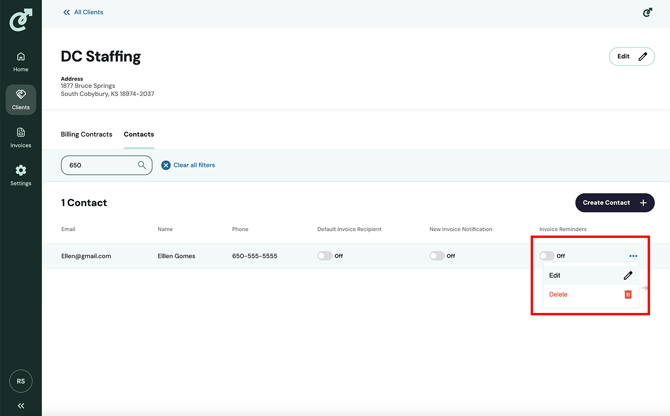
To edit a contact, navigate to the client details page by opening the list of clients and clicking a client. By default, you will land on the “Billing Contracts” tab. Click on the “Contacts” tab to view the list of contacts. Click on the 3 dots on the right-hand side of the contact row to open the contact menu. From the menu, click “Edit.”
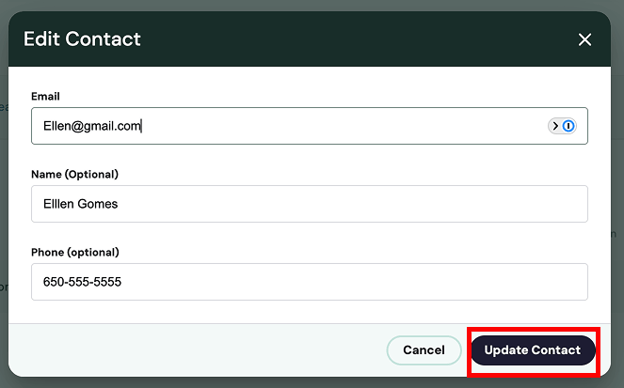
After you click “Edit,” the “Edit Contact” pop-up will open, where you can modify the email, name, and phone number of the contact. Once you have modified the relevant information, click the “Update Contact” button in the pop-up.