Invoice List
Last updated: April 22, 2026
You can navigate to the invoice list by clicking the Invoices tab in the navigation. From here, you can view all the existing invoices in your system. Clicking any row in the invoice list takes you to the invoice details page. See below for a detailed description of all the filters and columns on the Invoices page.
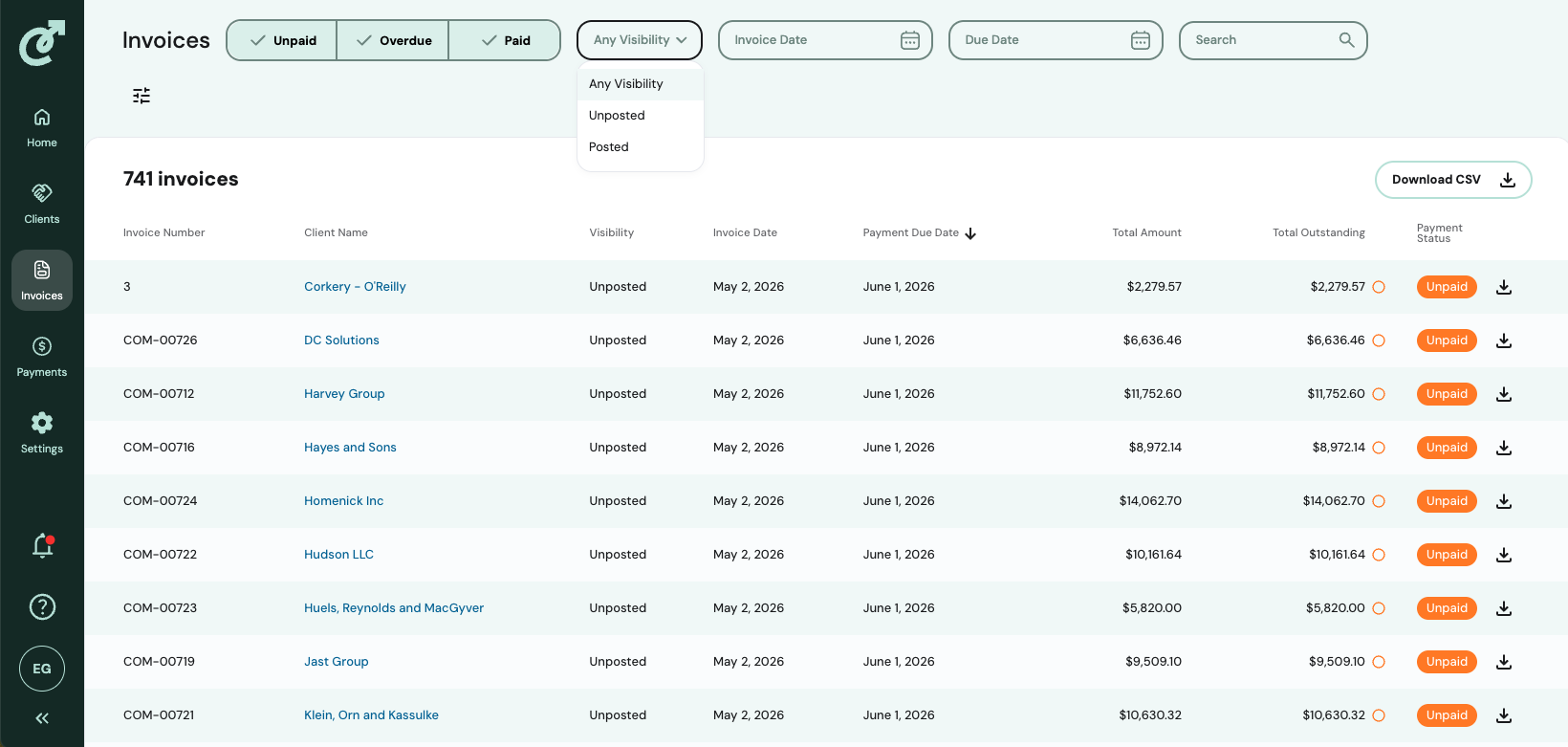
Top Filter Bar
Status Filter
The status filter enables you to filter the list of invoices by status. By default, all invoices will be displayed. Click on the status options (unpaid, overdue, paid) in the status filter in the list. For detailed information on invoice status types, see the Invoice Workflow article.
Visibility Filter
The visibility filter enables you to filter all invoices by whether they are posted or unposted.
Invoice Date Filter
The Invoice Date filter allows you to filter all invoices based on a date or date range that the invoice was issued.
Due Date Filter
The Due Date filter allows you to filter all invoices by the due date or range of due dates.
Search
Search enables you to filter the list of invoices by client name or invoice number. Simply type the client name or invoice number into the filter and the list below will update to only display invoices that match your query.
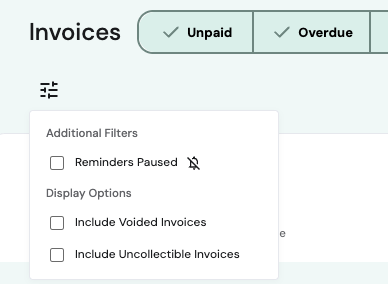
Additional Filters
The toggle icon (under the word invoices on the top left of the filter bar) opens a menu of additional filters that include the ability to filter based on Reminders Paused, or whether to include Voided Invoices, or Uncollectible Invoices in the display.
Invoice list & column definitions
Invoice Count
The invoice count displays the number of invoices in the system. If any of the filters above are applied, this number will update to match the number of matching results from your query.
Invoice Number Column
This column displays the invoice number. You can click on the column header to sort the list of invoices by invoice number.
Client Name Column
This column displays the client that is responsible for paying the invoice. You can click on the column header to sort the list of invoices by client name.
Visibility Column
This column indicates whether the invoice is posted or unposted. You can click on the column header to sort the list of invoices by visibility status.
Invoice Date Column
This column represents the date the invoice was issued. You can click on the column header to sort the list of invoices by invoice date.
Payment Due Date Column
This column represents the date the client must pay the invoice by before the status changes to overdue. You can click on the column header to sort the list of invoices by payment due date.
Total Amount Column
This column represents the total amount of the invoice. You can click on the column header to sort the list of invoices by total.
Total Outstanding Column
This column represents the total outstanding balance of the invoice. You can click on the column header to sort by total outstanding.
Payment Status Columm
The status column displays the current status of the relevant invoice (Unpaid, Overdue, Paid). For detailed information on invoice status types, see the Invoice Workflow article.
Download Icon
Each row in the invoice list has a download icon on the far right. Click on this icon to download a PDF version of the invoice.