Contacts Overview
Last updated: April 6, 2026
Contacts can be found on the client detail page. Navigate to the client details page by going to the list of clients and clicking on a client in the list. By default you will land on the “Billing Contracts” tab. To view and manage contacts, click on the “Contacts” tab. Below is a detailed description of the “Contacts” tab.
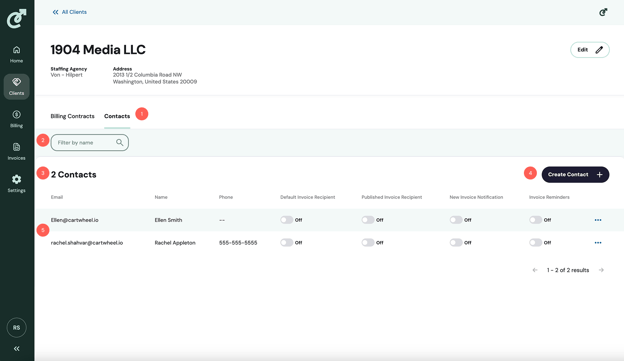
1. Contact Tab
Click on the contact tab to view client contacts.
2. Keyword Filter
Contacts can be filtered by name, email or phone number.
3. Contact Count
The contact count displays the number of contacts attached to the client. If filters are applied, the count will update to reflect the number of matching results.
4. Create Contact Button
Click the “Create Contact” button to create a new contact.
5. Contact Table
Each row in the billing contact table will include the email, name and phone number of the contact. Additionally, you can manage the settings for each contact in this table. For more information on contactsettings, see the Contact Settingss article.