Adding an Integration (Connecting)
Last updated: April 22, 2026
We will use Stripe (payment provider) for this example.
Stripe can be set up to allow your end clients to process payments directly through Cartwheel, thus alleviating the need to switch between multiple systems. Once a payment has been processed via Stripe -using a dedicated Cartwheel link - the invoice status will be automatically updated.
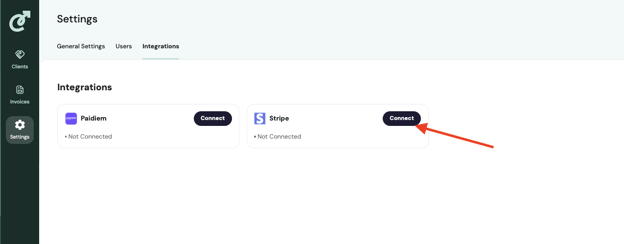
To get started:
Follow the steps to navigate to your available Integrations.
Click the ‘Connect’ button inside the Stripe Card.
Complete the form to register your account and create a sync with Cartwheel.
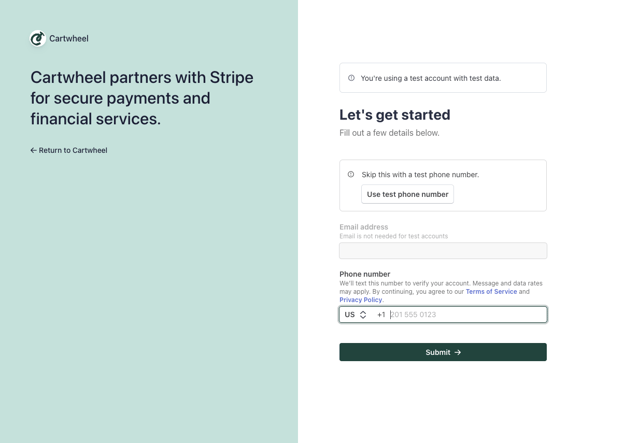
Others (Payroll Provider)
Connecting a payroll provider enables Cartwheel to seamlessly generate invoices according to your defined automation schedule. Depending on the provider, the steps to connect, as well as the required information, may vary.
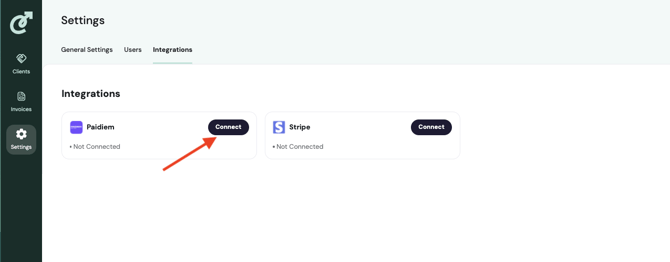
To connect a provider:
Follow the steps to navigate to your available Integrations.
Click the ‘Connect’ button inside your provider's display card (e.g., Paidiem).
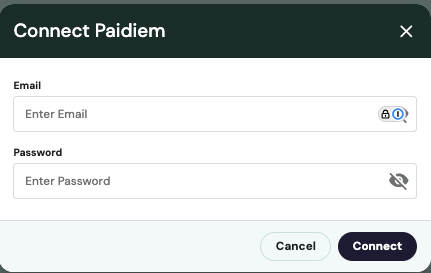
A pop-up will display to input the required connection credentials.
Enter all credentials and click the ‘Connect’ button.
Upon completion, the provider's status will display as ‘Connected.’
Note: If you do not see an integration or if you need assistance potentially setting up an integration, please contact your account manager.