Overview of Billing Summary Details Page
Last updated: April 22, 2026
Billing Summaries are documents that summarize upcoming charges for goods or services provided. It outlines the transaction details, including itemized costs, the total amount due, and the payment terms to be included on the upcoming invoice.
To view the billing summary details page, navigate to the list of billing summaries and click a billing summary. See below for a detailed description of each element of the billing summary detail page.
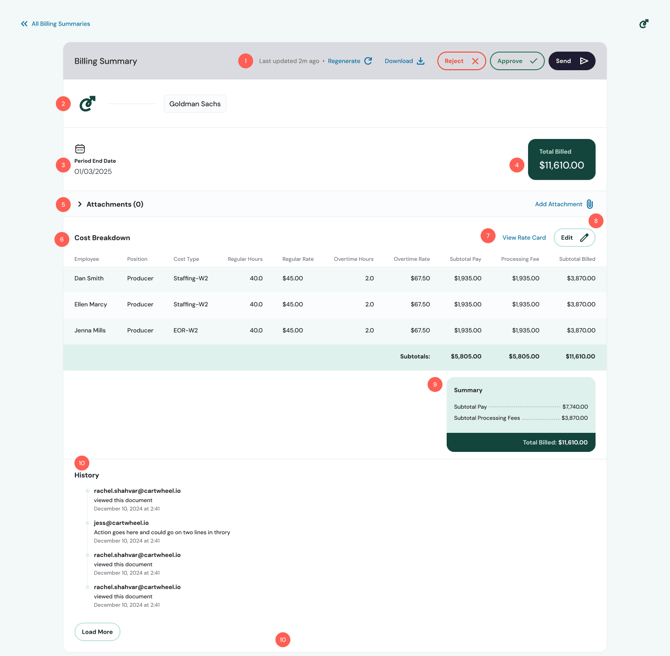
1. The Status & Action Header
The status and action header will be present at the top of every billing summary. In the top-right, you will find the last updated timestamp and all of your available actions. The last updated timestamp indicates when the data from your end systems was last synced with Cartwheel. To manually update the data from your end system, click the “Regenerate” button; this will trigger the system to resync with your end system's data.
Click “Download” to download a PDF version of the invoice.
The approve and reject buttons allow you or your clients to mark billing summaries as rejected or approved. For more information, view the Approval Process Article.
Lastly, clicking the send button will open the “Send Billing Summary” pop-up with default recipients automatically populated. From here, you can add or remove email addresses and send the billing summary to the indicated recipients.
2. Billing Organization’s Information
The name or logo of your billing organization or agency will appear alongside the client name.
3. Period End Date
The period end date represents the last day of the billing period represented in the billing summary.
4. Primary Total Billed
The total billed displays the total amount of the billing summary that will appear on the upcoming invoice.
5. Attachments
If there are attachments to your billing summary, they will display in the attachments section. To view attachments, click on the “Attachments” label, and the section will open. If there are attachments present, they will be listed by name. You can click on the name of an attachment to view it in a new tab. For more information on attachments, view the Adding, Removing, and Viewing Attachments Article.
6. Cost Breakdown
The cost breakdown details the work you will be charging on the upcoming invoice. The column and information displayed in this section may vary.
7. View Rate Card Link
Clicking the “View Rate Card” link opens a pop-up with details of your organization's billing rates.
8. Edit Button
Clicking the edit button opens the “Edit Cost Breakdown” page, where you can modify the cost breakdown. For more information, see the "Editing the Cost Breakdown" Article.
9. Secondary Total Billed
In addition to appearing at the top, the total amount in the billing summary will also appear beneath the cost breakdown on the upcoming invoice.
10. History
The history section records which users have viewed the billing summary and when.
12. Terms and Conditions
Click on the “Terms and Conditions” link at the bottom of the invoice to view your terms and conditions.