Overview of Navigation
Last updated: April 22, 2026
You can find the Cartwheel navigation panel on the left side of your screen. This panel is used to move throughout the product. Below is a detailed breakdown of the navigation panel.

Home: The first item in the navigation is Home. This is your default landing page in Cartwheel. This is where you will find important metrics and trends, including average DSO and sales outstanding.
Clients: The Clients tab in Cartwheel displays a list of all clients in the system. From here, you can create clients, click on a client in the table to view the client details page, see all contacts, and billing contracts.
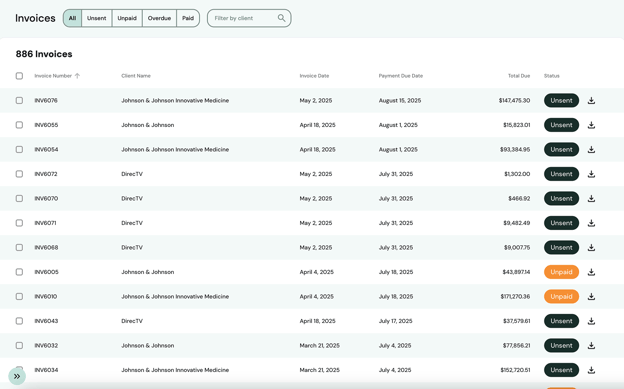
Invoices: The Invoices tab in Cartwheel will take you to a list of all the invoices in the system across all your clients. From here, you can filter invoices based on status, date, or visibility, click on an invoice in the table to view the invoice details page, download individual invoices, and download a CSV.
Payments: The Payments tab takes you to a list of all your transactions completed in Cartwheel. You can quickly see cash application details and how the payment was processed in this tab. You can download a CSV of details and make one-off payments for invoices not in Cartwheel.
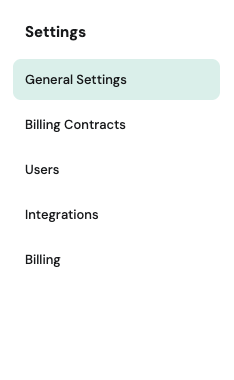
Settings: The Settings tab in Cartwheel lets you manage your general, billing contract, user, integration, and billing settings. You can navigate each setting sub-section by clicking on the tabs on the left of the screen.
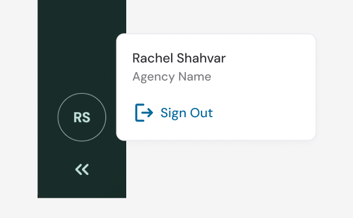
1. Profile Avatar
Clicking the profile avatar opens your account menu. From here, you can view the name of your staffing agency and sign out of the application. If you are an admin across parent and child accounts or multiple agencies, you can also switch organizations here.
2. Collapse Icon
Clicking the collapse icon hides the navigation, giving you more screen space to view content. Once clicked, an expand icon will display in the bottom-left corner of the screen. Click on this icon to bring the navigation back into view.