Inviting New Users & Permissions
Last updated: April 22, 2026
To access the Cartwheel system, people need to be invited. To invite new users, start by navigating to the user list by clicking the “Settings” tab in the side navigation. From there, click on the “Users” tab across the top of the page.
Click on the “Invite User” button on the top-right of the user list.
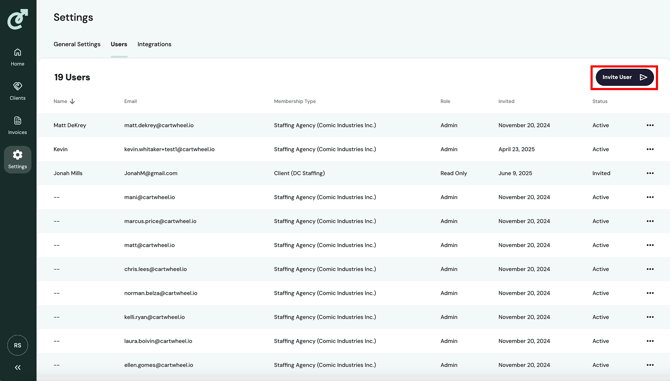
Once you click on this button, the invite user pop-up will display.
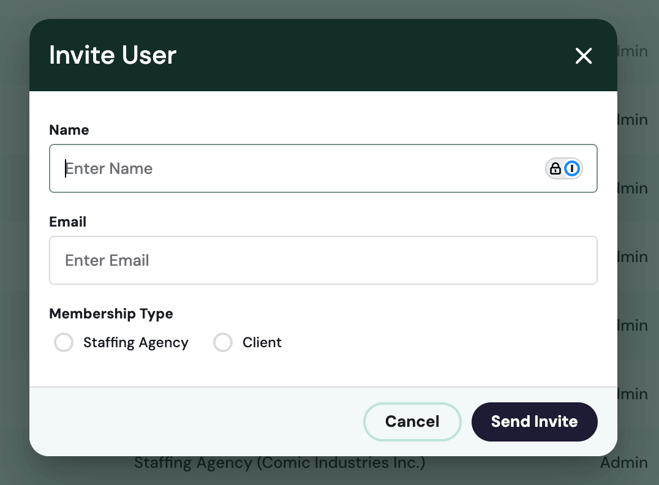
Entering the user’s name is optional, but entering their email is required. Select the membership type you wish that user to have. There are two possible membership types. The first is “Staffing Agency,” which means the user will have access to all invoices and other sections of the system, including the homepage and settings. When you select “Staffing Agency” under the membership type section, you will be prompted to select a role:
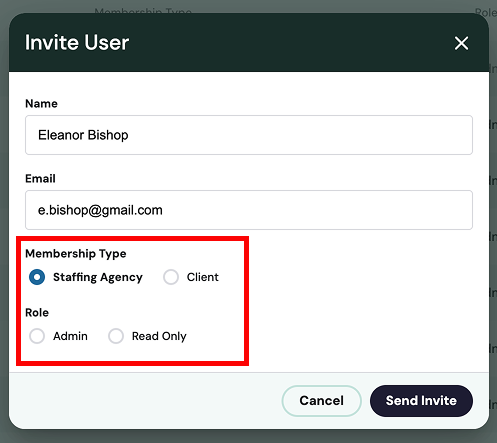
There are two role types. The first role type is “Admin,” which means the user has full permissions throughout the system to create, edit and delete objects.
The second role type is “Read Only,” which means the user only has permission to view objects in the system.
The second membership type is “Client,” which means the user will only have access to invoices for a single client. They will not have access to anything else in the system but a list of invoices. When you select “Client” under the membership type section, you will be prompted to select a client. Note that all client users will be read-only users.
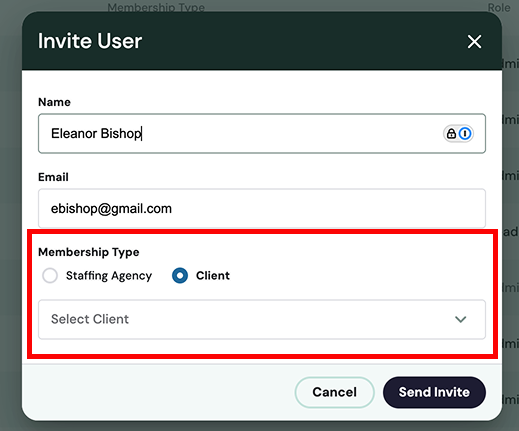
Once you have input all the required fields, click the “Send Invite” button in the bottom right of the pop-up.
Once invited, the user will display in the list with the status of “Invited.” The user will receive an email notification with the invitation. When the user accepts the invitation, their status will update to “Invited.”
If desired, the same email address can be invited to multiple clients.