Configuring DSO Settings in Cartwheel
Last updated: June 15, 2026
This article explains how to configure your DSO (Days Sales Outstanding) lookback window and week-end day, and how to use the date range selector on the Avg DSO tile on your homepage.
What is DSO?
DSO measures the average time it takes to collect payment after an invoice is issued. In Cartwheel, DSO is calculated using a configurable lookback window and displayed as a trend on your homepage dashboard.
Configuring DSO Settings
Step 1: Open Global Client Settings
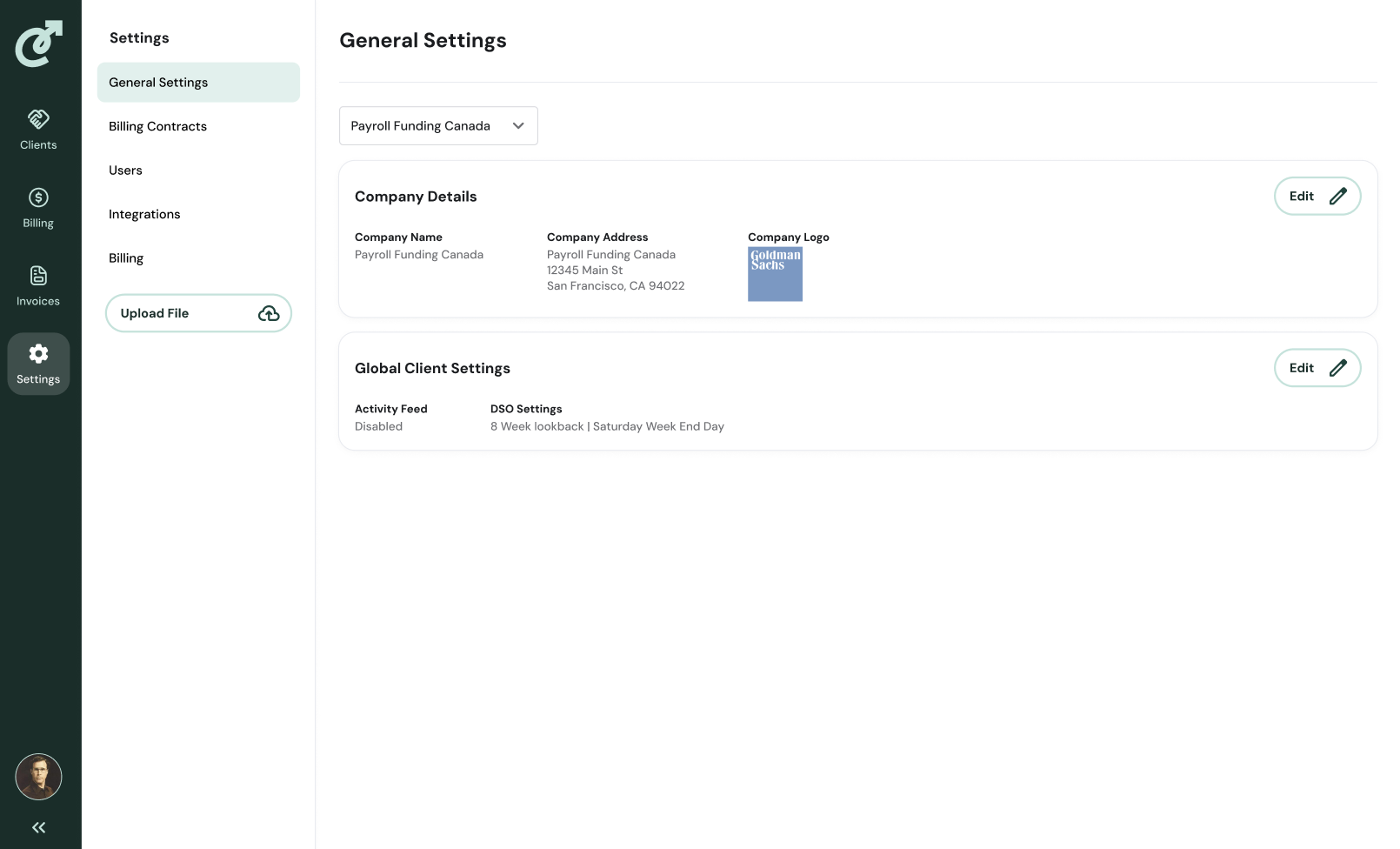
In your Cartwheel account, go to Settings in the left navigation. Select Global Client Settings and click Edit.
Step 2: Update DSO Settings
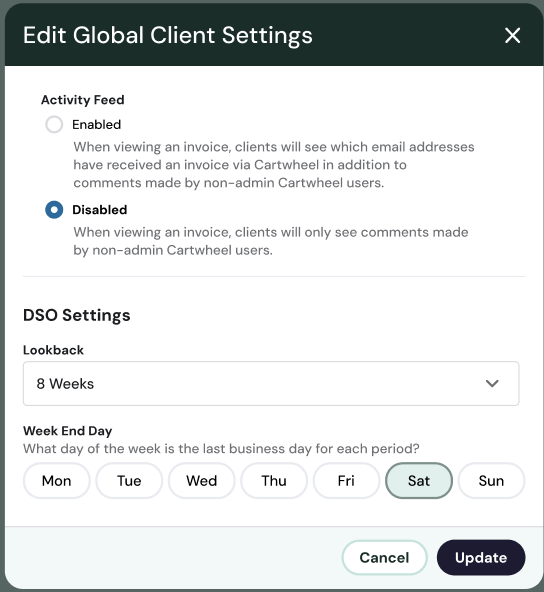
Scroll to the DSO Settings section. Two options are available:
Lookback — Sets how many weeks of data Cartwheel uses to calculate your average DSO. Options range from 1 to 12 weeks. The default is 8 weeks.
Week End Day — Sets which day of the week marks the end of each DSO period, determining when data points appear on the graph. The default is Saturday.
Select the values that match your organization's reporting cycle and click Update to save.
Using the DSO Date Range Selector
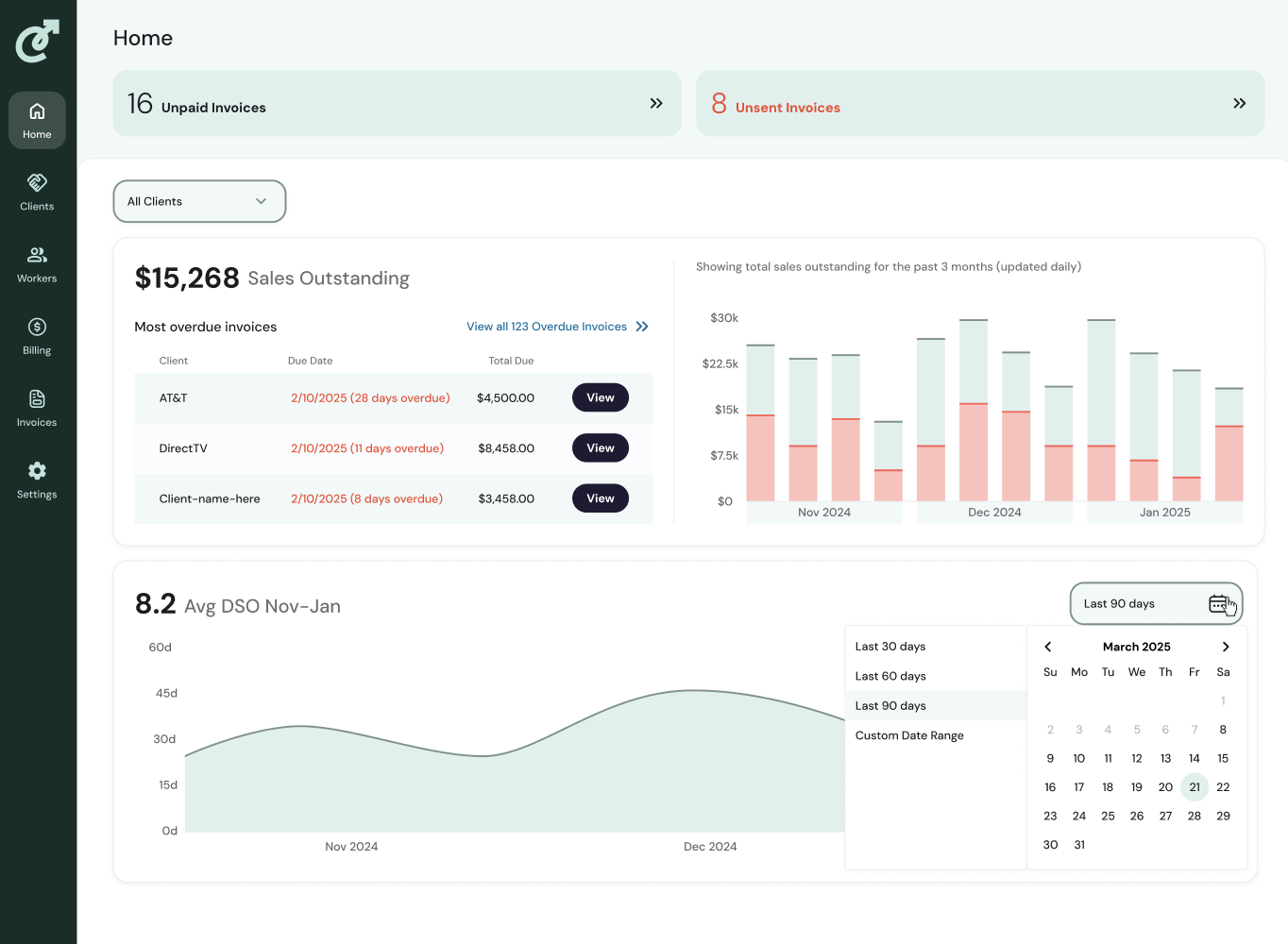
The Avg DSO tile on your homepage includes a date range selector in the top-right corner.
Available options:
Last 30 days
Last 60 days
Last 90 days (default)
Custom Date Range — select any range up to 1 year
To change the date range, click the selector and choose an option or select a custom start and end date from the calendar. The graph will update immediately.
Note: If you navigate away from the homepage, the date range will reset to the default of Last 90 days when you return.
Quick reference
Setting | Default | Location |
|---|---|---|
Look back window | 8 weeks | Settings → General Settings → Global Client Settings |
Last business day | Saturday | Settings → General Settings → Global Client Settings |
Average DSO filter | Last 90 days | Home page → Average DSO tile |