Client List
Last updated: April 22, 2026
You can navigate to the client list by clicking the “Clients” tab in the navigation. From here, you can create new clients and view all the existing clients in your system. Clicking any row in the client list takes you to the client details page. See below for a detailed description of the client list.
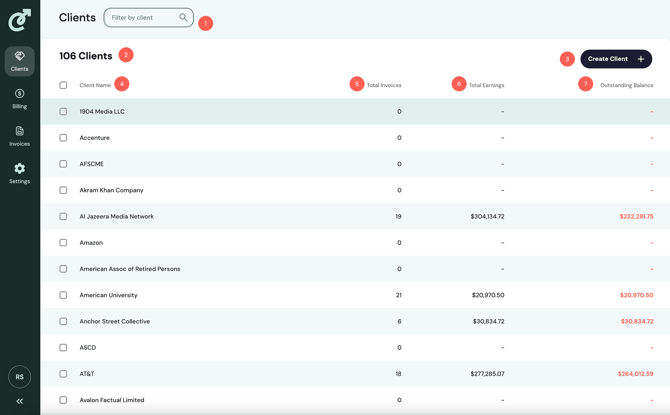
1. Client Filter
The client filter enables you to filter the list of clients by keyword. Simply type into the filter, and the list below will update to only display clients that match your query.
2. Client Count
The client count displays the number of clients in the system. If the client filter above is applied, this number will update to match the number of results returned by your query.
3. Create Client Button
Clicking the “Create Client” button will open the create client modal. Once created, new clients will show up in the client list.
4. Client Name Column
This column displays the client name. By default, the list will be sorted by client name. To reverse the sort, simply click on the column header.
5. Total Invoices Column
This column displays the number of invoices in the Cartwheel system for the relevant client.
6. Total Earnings Column
This column represents the total dollar amount collected from the client via invoices in the Cartwheel system. This number will not reflect earnings accumulated prior to the implementation of Cartwheel, nor will it include earnings from any invoices not present in the Cartwheel system.
7. Outstanding Balance Column
This column represents the total outstanding balance owed by the client on invoices in the Cartwheel system. This number will not reflect outstanding balances on invoices recorded prior to implementing Cartwheel, nor will it include balances on invoices not present in the Cartwheel system.