Setting Up White Label Emails in Cartwheel
Last updated: June 15, 2026
This article walks you through how to configure a custom email theme so that reminder and notification emails sent by Cartwheel use your own logo and brand colors.
Note: White labeling is a feature that must be enabled for your account by the Cartwheel team. Contact support to have it activated.
Before You Begin
Your Cartwheel account must have the White Labeling feature set to either Email Theme Only or Email Theme & DNS by a Cartwheel Super Admin. If you do not see a White Labeling section in Settings, contact Cartwheel support.
Step 1: Open White Labeling Settings
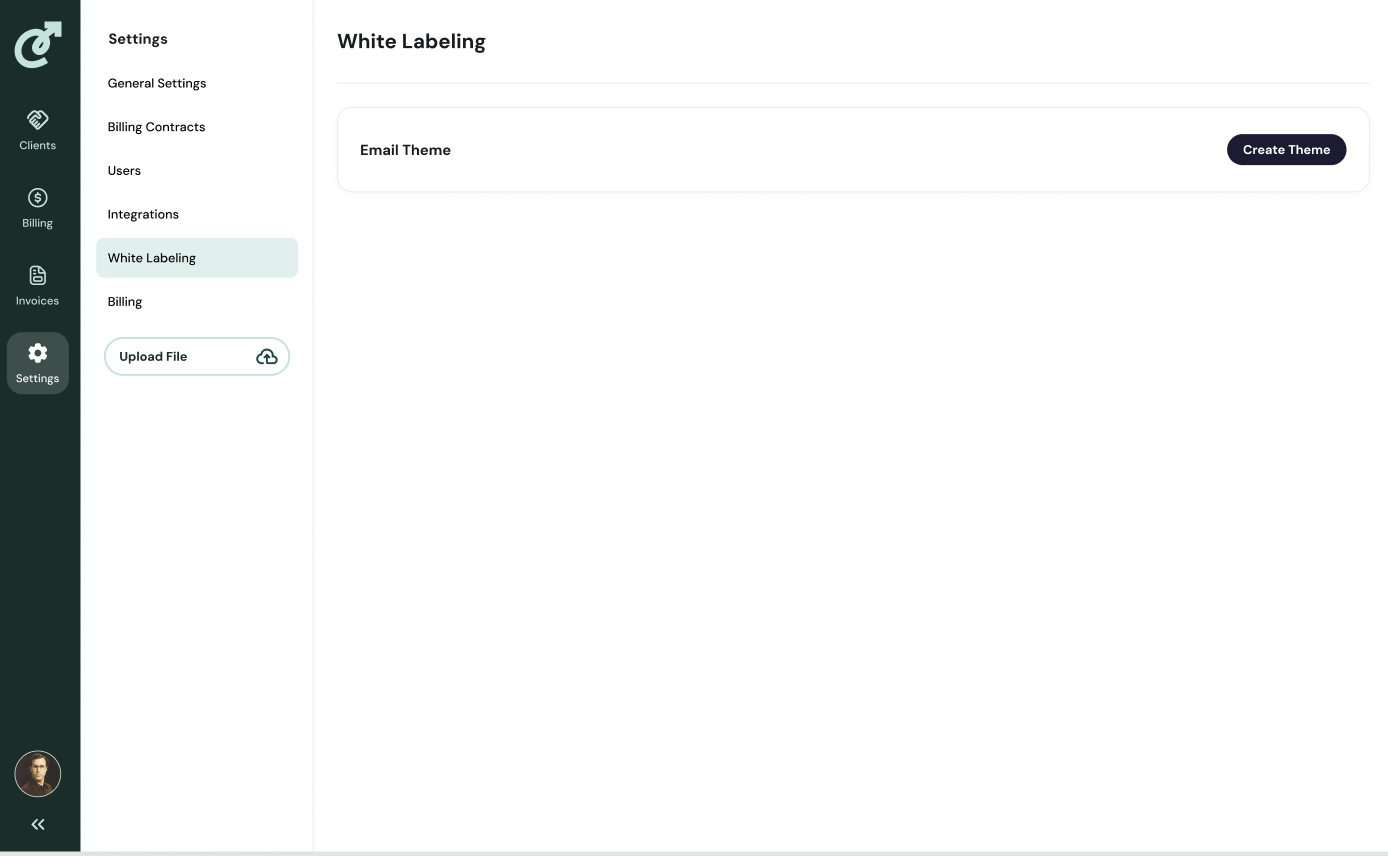
In your Cartwheel account, go to Settings in the left navigation. Select White Labeling.
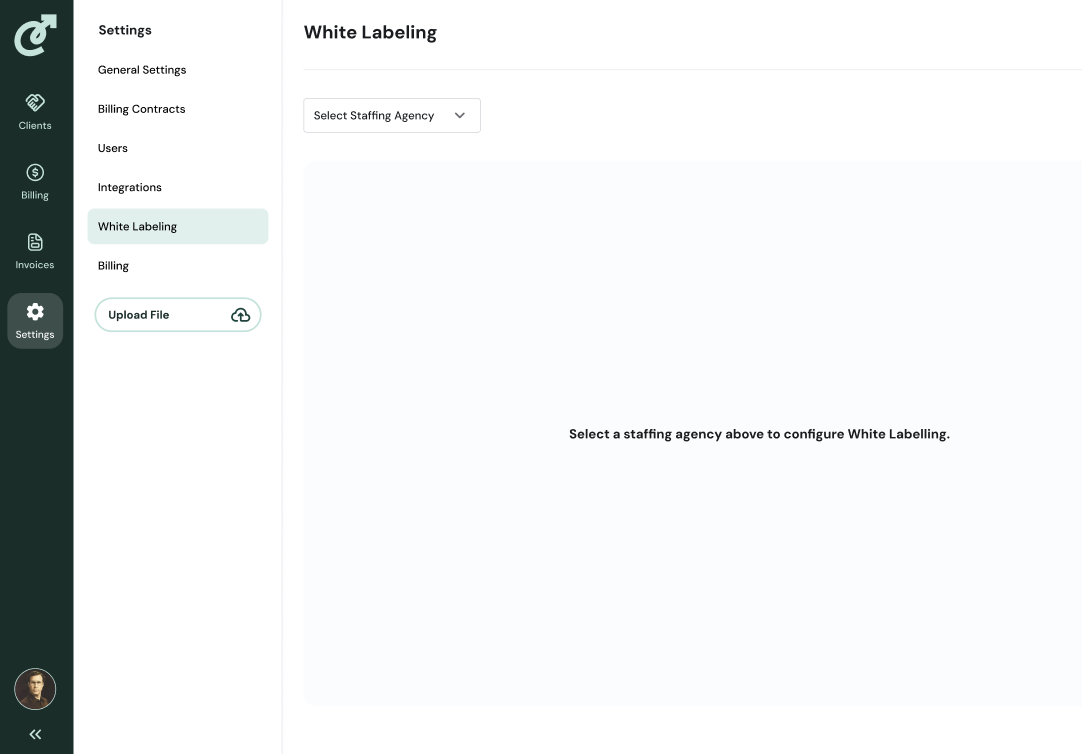
Parent Company
If you are a parent company, you must first select a staffing agency from the selector at the top of the page before the Email Theme tile will appear.
Step 2: Create an Email Theme
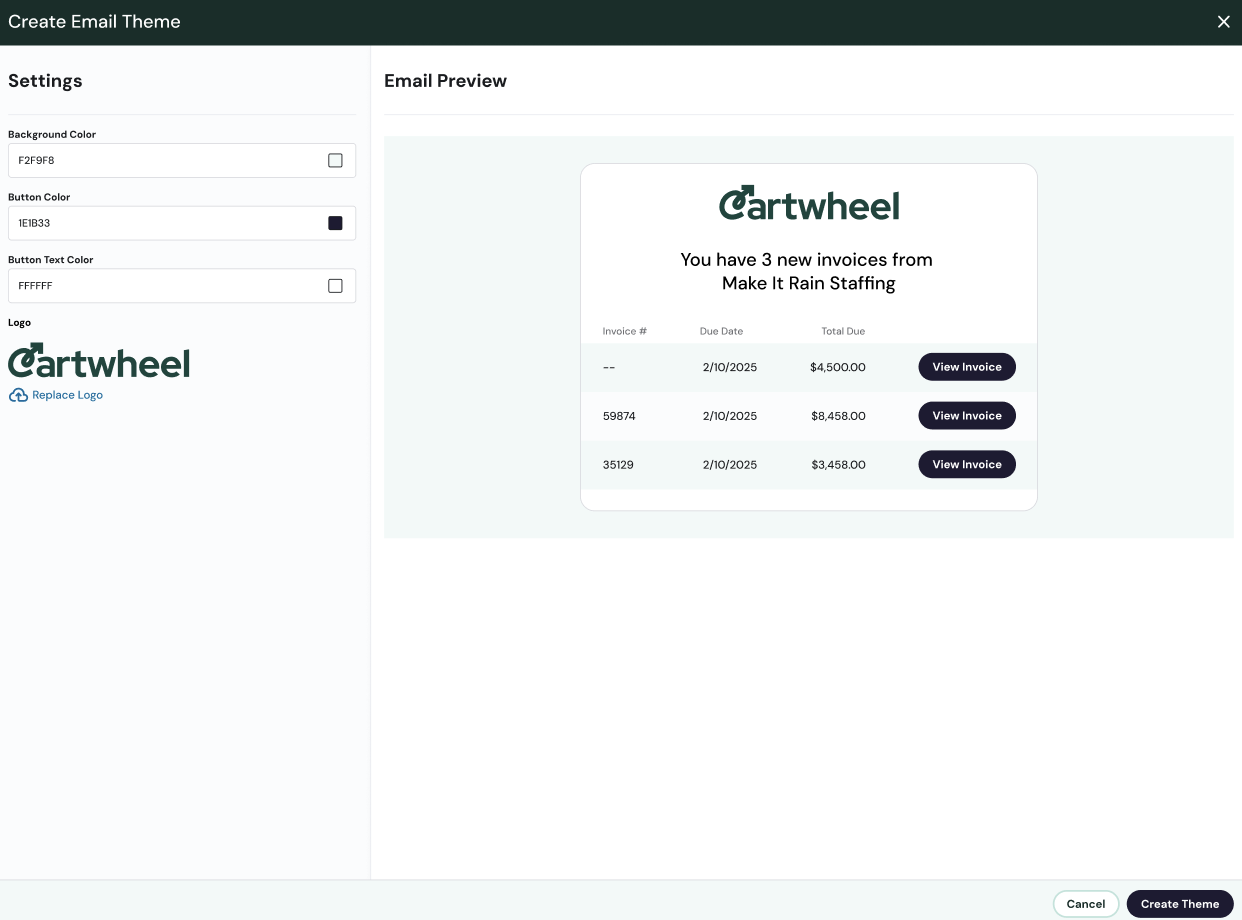
In the Email Theme tile, click Create Theme. The Create Email Theme dialog box will open.
Configure the following fields:
Background Color — Enter a HEX value for the email background.
Button Color — Enter a HEX value for the email's primary button.
Button Text Color — Enter a HEX value for the button text.
Logo — Click Replace to upload your logo. Accepted formats: JPEG, JPG, PNG.
A live preview will appear to the right. It updates in real time as you make changes.
Step 3: Save and Test
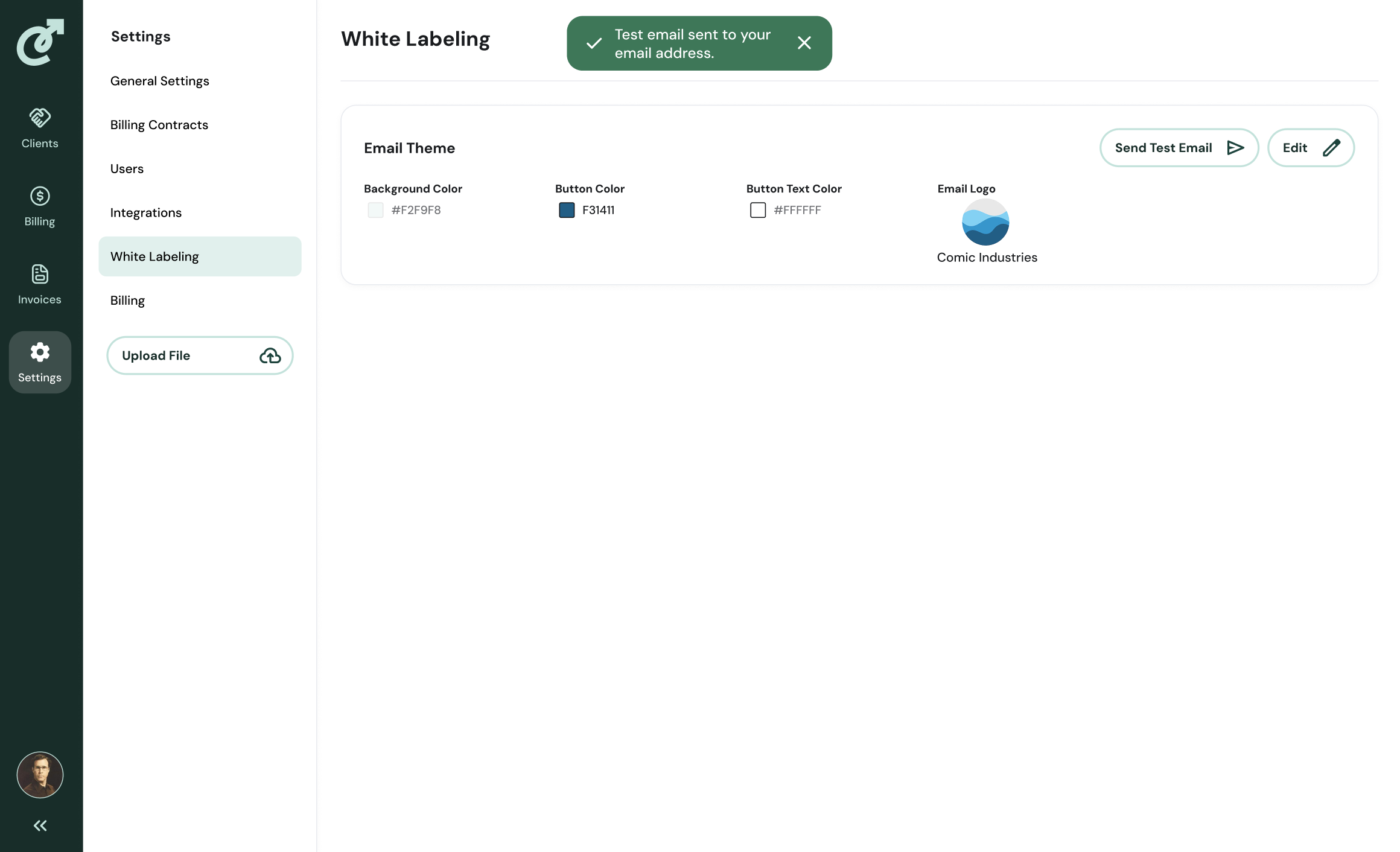
Click Create Theme to save. The Email Theme tile will update to display your selected colors and logo.
To verify how your emails will look, click Send Test Email. A test email will be sent immediately to your logged-in email address.
Editing Your Theme
To make changes after your theme is created, click Edit in the top-right of the Email Theme tile. Update the desired fields and click Update to save.