Manual Payment Allocation + Unapplied Cash
Last updated: August 15, 2026
When a payment arrives and is not automatically matched, Cartwheel flags it as unallocated. This gives your team an easy way to identify when human review is needed.
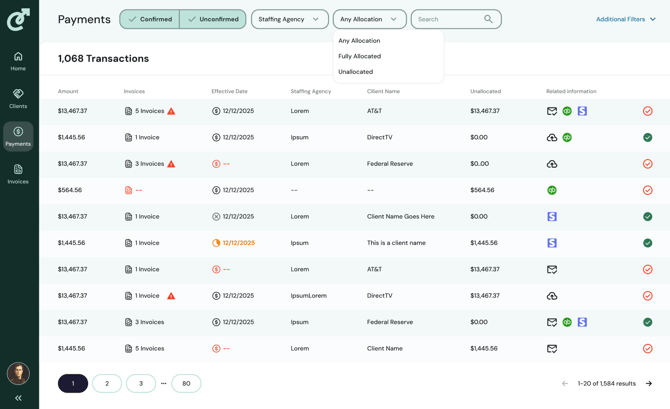
From the Payments tab, sort or filter by Unallocated. Rows where the collected amount differs from the invoice/allocation amount will surface here. This includes both overpayments and short pays, so check which direction the difference runs.
Click on an invoice that shows an unallocated balance. Once you click, you will see the transaction details.
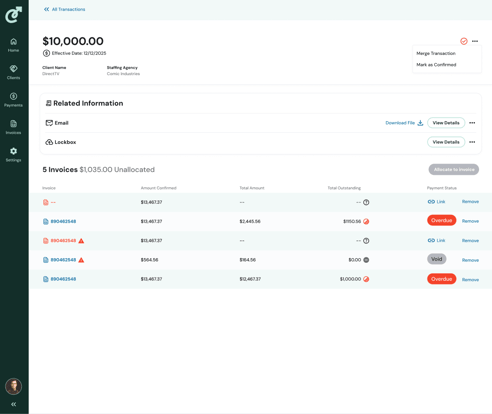
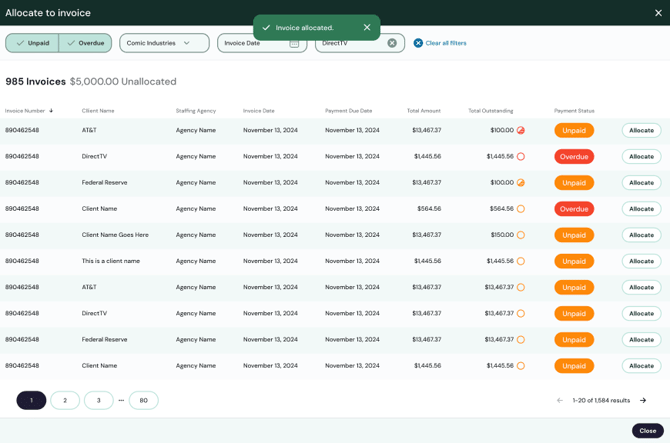
For unmatched payments, simply click Allocate to Invoice (grey button in image) to select the correct invoice or invoices, including for partial or split payments. This will take you to an Allocate to Invoice page listing invoices for that client with a balance due.
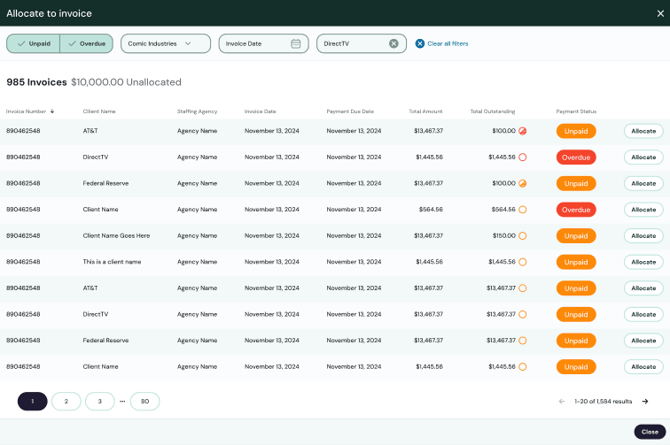
Once you identify which invoice (s) you'd like to allocate the payment to, click Allocate. A dialog box with the invoice details will appear. In the dialog box, select whether you want to apply the total amount of the payment or other (and then enter the amount to apply), and click the Allocate button. You will return to the Allocate to invoice screen, which will reflect the allocation and display a confirmation message.