Unable to find Invoice
Last updated: August 17, 2026
Sometimes Cartwheel cannot match a payment to an invoice. There are two scenarios where this happens:
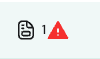
1) A payment comes in referencing an invoice number that Cartwheel can't match to anything on file. These are identifiable by a red triangle with an exclamation mark icon.
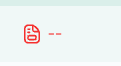
2) A payment comes in, and Cartwheel is unable to identify the invoice number from the details received. This is identifiable by a red invoice icon.
Why this happens
VMS invoice number mismatch: the invoice/reference number used by the VMS differs from Advance Partners' internal invoice number, so the payment can't auto-match.
Migration gap: during onboarding, Cartwheel may not yet have a client's full invoice history loaded. For example, if invoice data sync started in January but a payment comes in for an invoice issued the prior year, that invoice won't yet exist in Cartwheel.
Missing details: The accompanying data and details do not contain the invoice number or anything Cartwheel can use to identify it with confidence.
Steps
On the Payments tab, locate the Unconfirmed transaction with no invoice match.
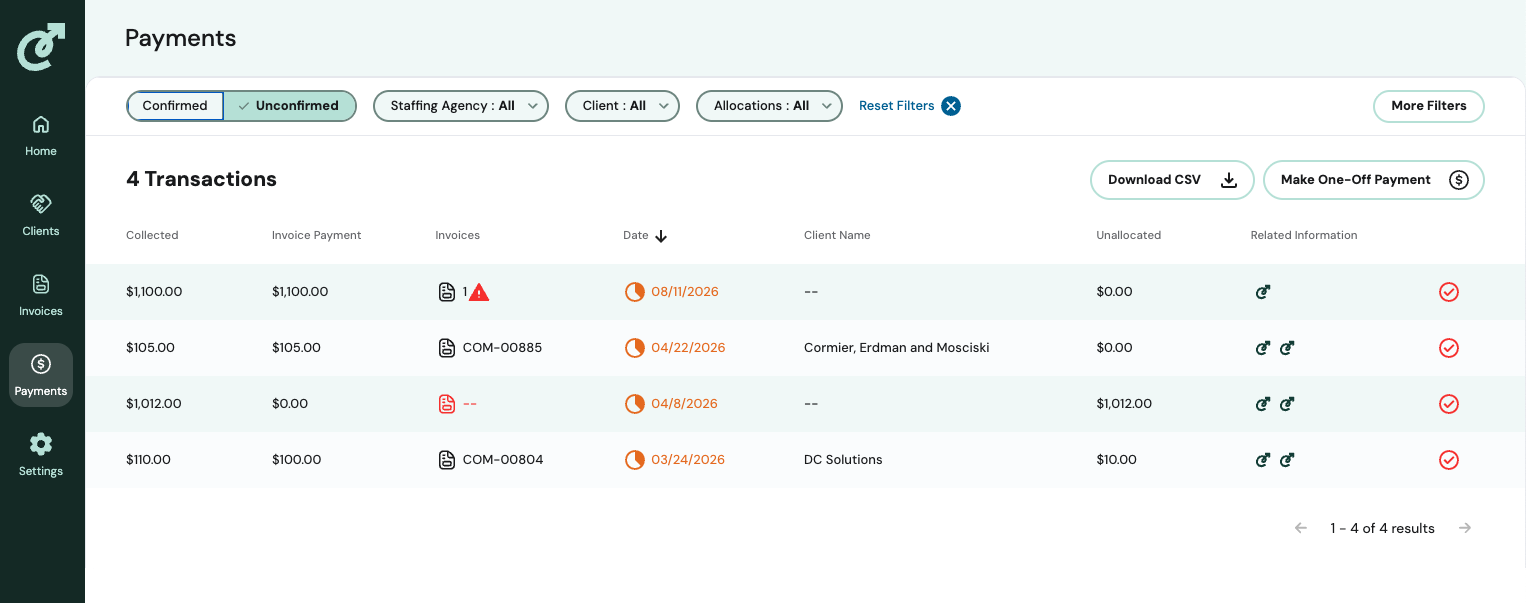
Confirm whether the referenced invoice number is a VMS number vs. an internal invoice number, and cross-check against the client's invoice list.
If the internal invoice that maps to the VMS invoice is in Cartwheel, you can link that invoice on the transaction detail page so the payment will be applied to the invoice in Cartwheel.
If the invoice genuinely doesn't exist in Cartwheel yet (migration/historical gap):
Request that the missing invoice data be sent to Cartwheel so it can sync in, or
Handle the payment application manually outside Cartwheel until the historical invoice is available.
Once the correct invoice is identified or synced, allocate the payment to it (see Manual Payment Allocation).