How to Add Bank Accounts in Cash Application
Last updated: September 9, 2026
To associate a specific bank account with a client profile, follow these steps.
Step 1: Find the Originator's Bank Account and Routing Number
1. Log in to Cartwheel
2. Navigate to the Payments tab
3. Using the filters at the top of the page, select to see only confirmed payments. Click the Unconfirmed button to deselect unconfirmed. You will see the list of confirmed transactions.

4. Click into a confirmed transaction for the client for whom you want to add bank account details. Under Related Information, you will see a bank logo next to an EDI 820 or EDI 823 file.
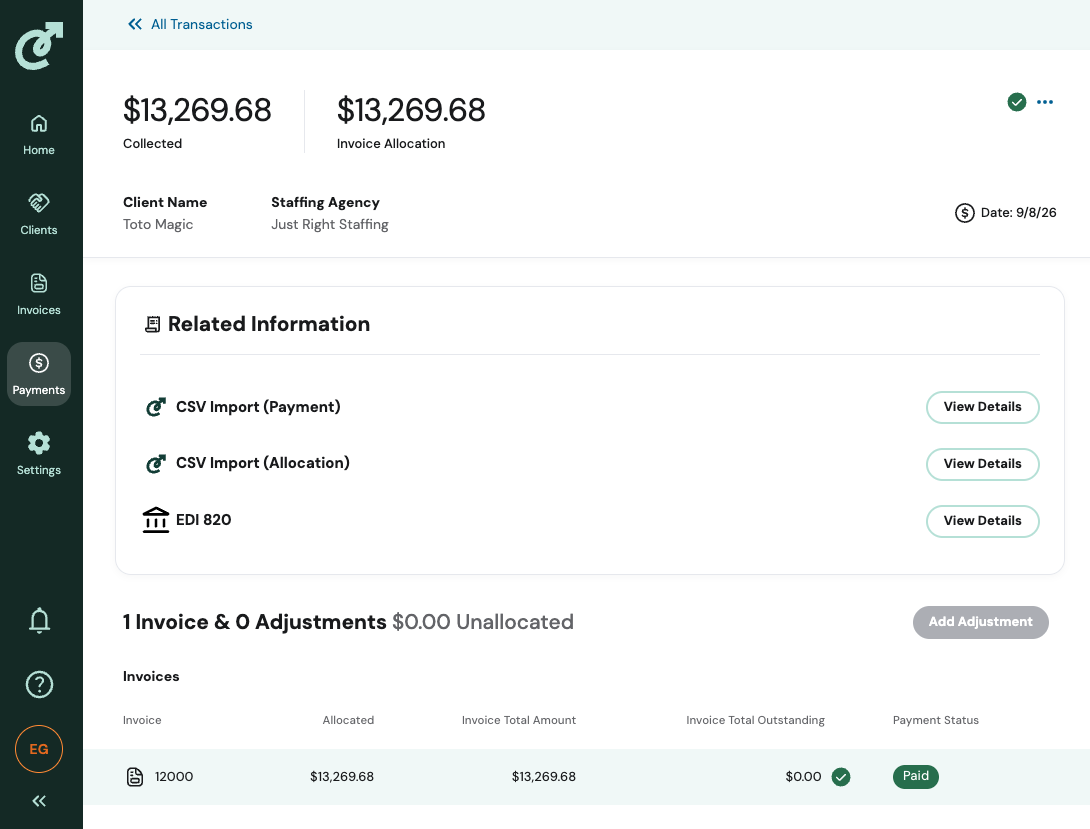
5. Click View Details; a dialog box will open with payment details. Scroll down to see the originator's bank account and routing number. Note the bank account and routing number details; you will need to input them in step 2.
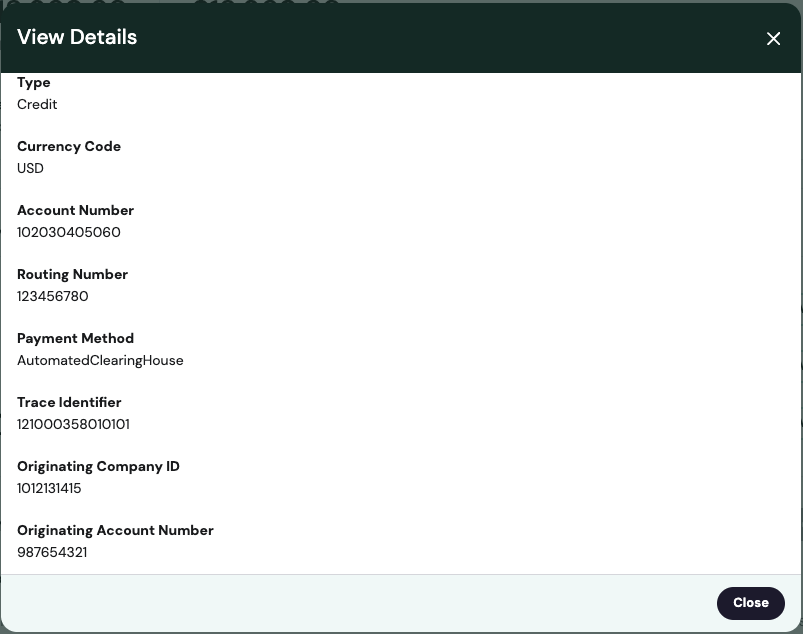
Step 2: Add the bank account and routing number to the client profile
1. Go to the Clients tab
2. Search for and locate the client (debtor) by typing their name into the search bar in the navigation at the top of the client list.
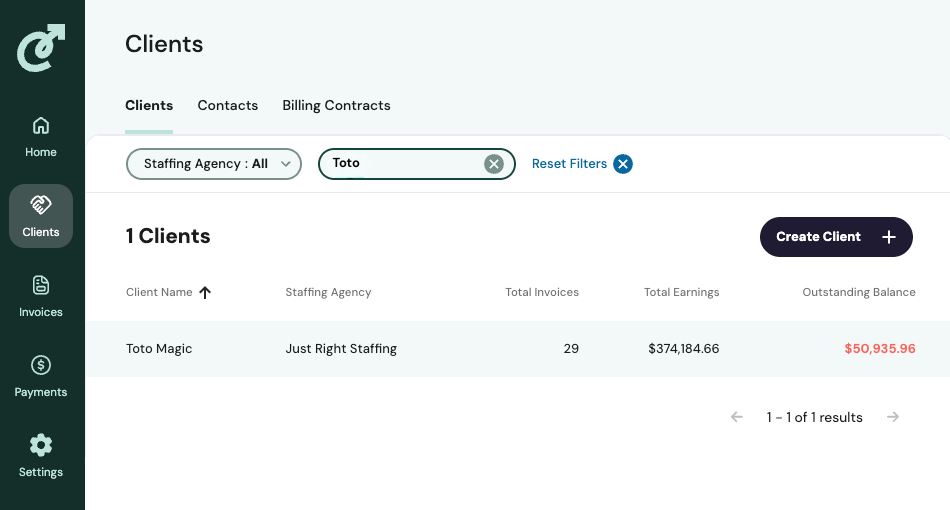
3. Select the client by clicking on it.
4. On the Client details page, you will see 5 navigation tabs underneath the client details: Billing Contract, Contacts, Invoices, Payments, Bank Accounts, and Comments.
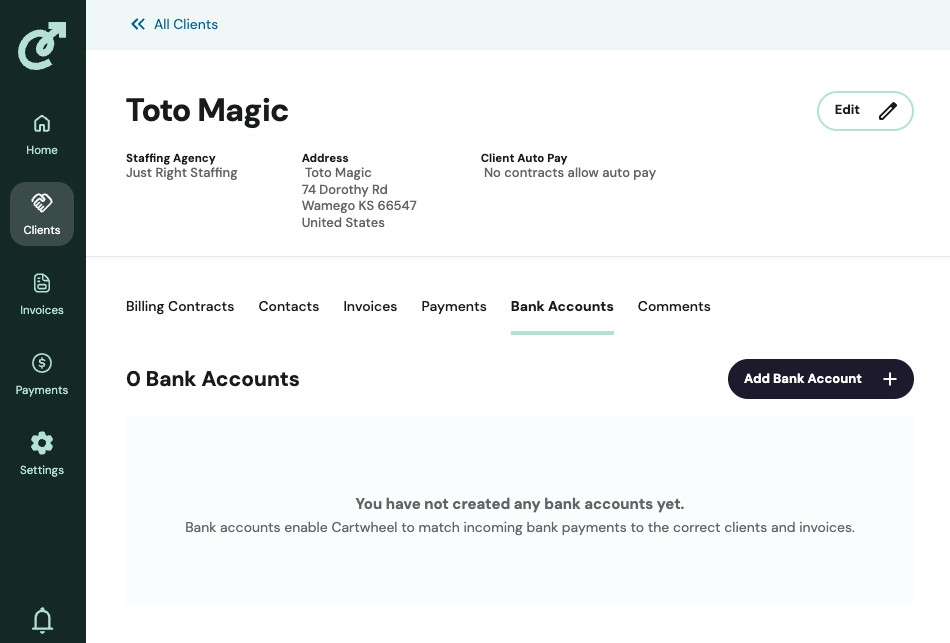
5. Select Bank Accounts. Click on the Add Bank Account + button.
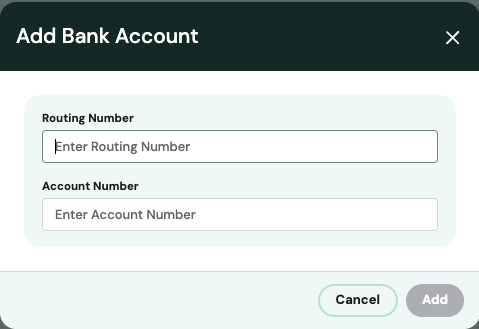
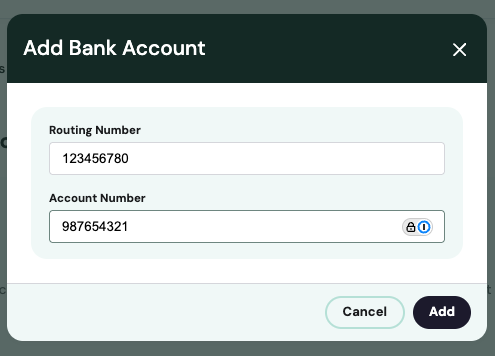
6. A dialog box will appear. Enter the account and routing number, and click Add.