Missing Remittance
Last updated: August 17, 2026
Sometimes a payment arrives without remittance details (no backup indicating which invoice(s) it covers), so Cartwheel can't auto-apply it.
How to identify what's missing
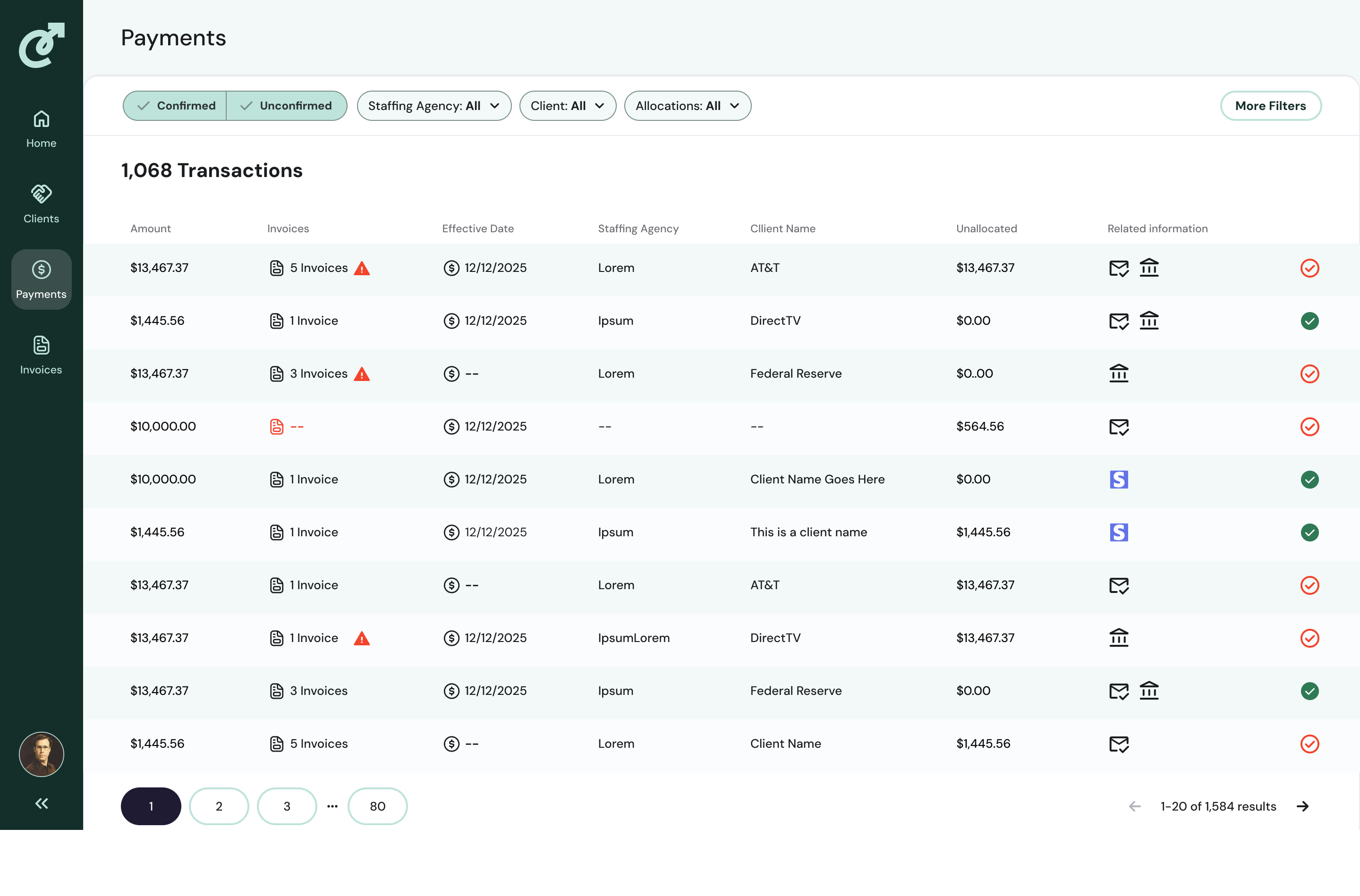
On a transaction, Cartwheel shows a small icon indicating the payment source:
The Email icon displays when we have received remittance details by email.
The Bank icon displays when we have received an EDI file, which sometimes contains remittance details.
If neither is present / the transaction is stuck Unconfirmed for lack of backup, remittance is missing.
If only a bank icon is present, and the transaction is unconfirmed, it indicates that the EDI file did not contain remittance details.
Steps
Identify the payment that's missing remittance detail
Contact the end client or staffing agency, in whichever language/channel is appropriate, and request the remittance detail.
Direct them to forward the remittance email as-is to the client's dedicated Cartwheel remittance email address.
Each client has its own dedicated forwarding address
Once Cartwheel receives the forwarded remittance email, it automatically links the remittance detail to the pending payment and applies it.
If a new exception surfaces after the remittance is applied (for example, the invoice referenced doesn't match), or if the payment turns out to have been made in error, follow the appropriate exception flow.