Mark a Transaction as Confirmed
Last updated: August 15, 2026
When a transaction is not confirmed, the 3-dot menu in the upper-left corner of the transaction will include the option to Mark as Confirmed.
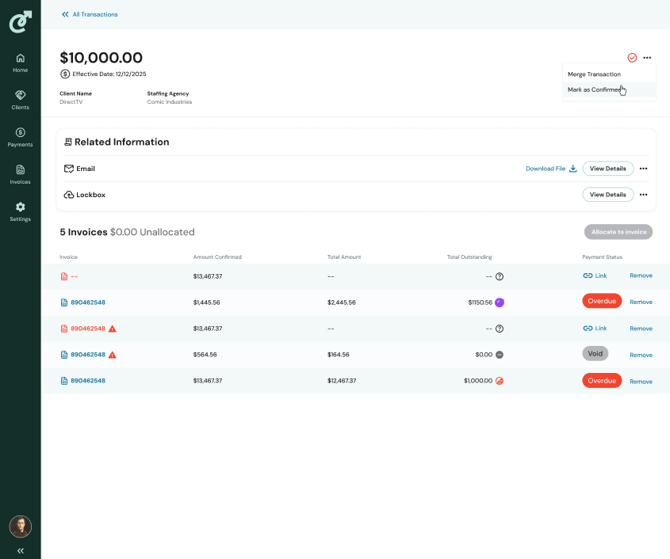
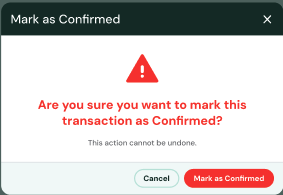
Clicking on Mark as Confirmed opens a dialog box that verify your choice. You can select either to Mark as Confirmed or Cancel.
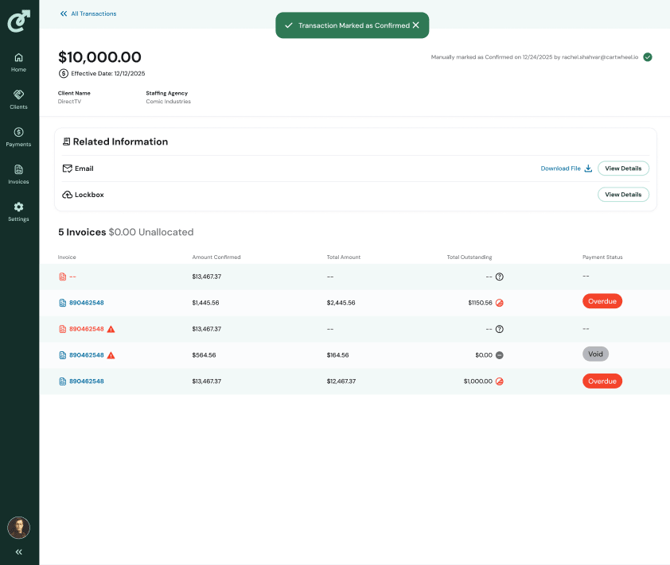
When you select to Mark as Confirmed, it will return you to the transaction detail page, mark the transaction as confirmed (with the visual of a full green circle and check mark), and add the confirmed date and user stamp in the top right corner.