Configuring a Custom Sending Domain (DNS) in Cartwheel
Last updated: June 16, 2026
This article walks you through how to configure a custom DNS domain so that Cartwheel emails are sent from your own domain instead of a Cartwheel email address.
Note: DNS configuration requires the Email Theme & DNS white labeling feature enabled for your account by a Cartwheel Super Admin. Contact support to have it activated.
Before You Begin
You have access to your organization's DNS settings (typically through your domain registrar or hosting provider).
You have a subdomain ready to use (e.g.,
cw.mydomain.com).DNS propagation can take time. Verification may not succeed immediately after adding records.
Step 1: Open White Labeling Settings
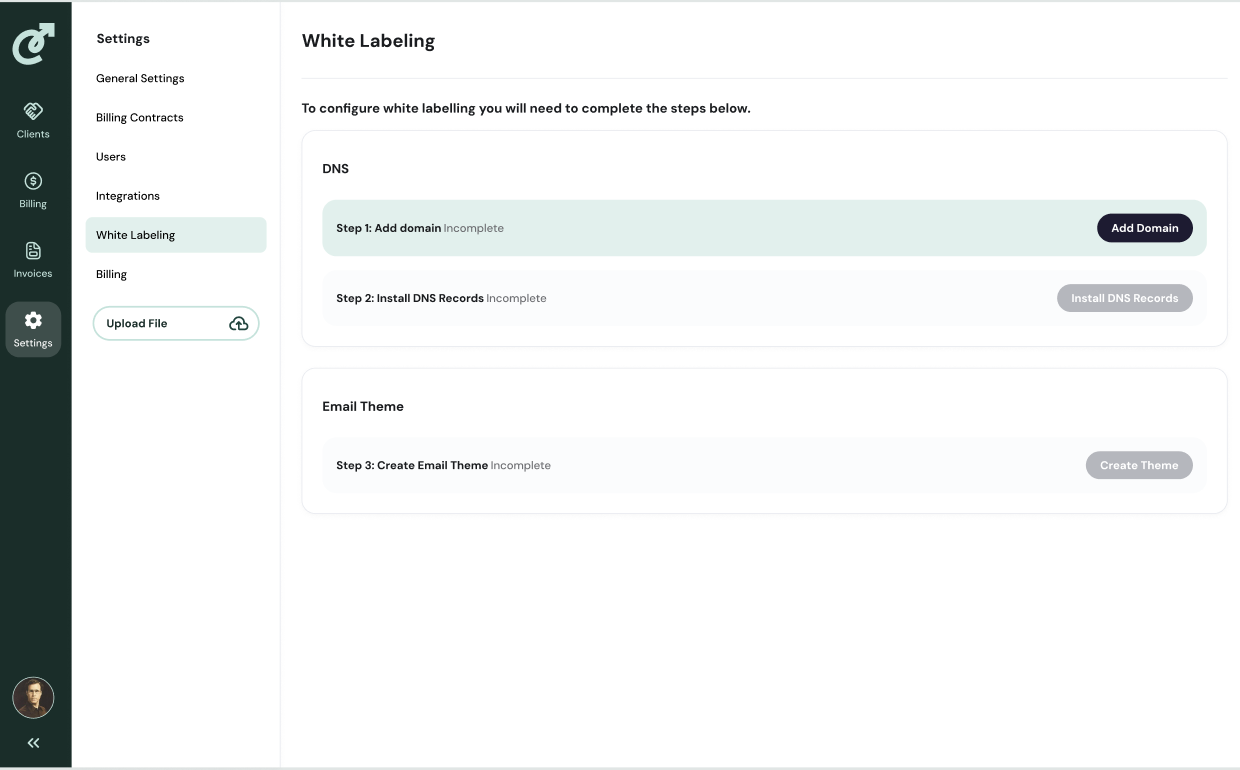
In your Cartwheel account, go to Settings in the left navigation. Select White Labeling.
Note: If you are a parent company, select a staffing agency from the selector at the top in order to configure the DNS.
Step 2: Add Your Domain
In the DNS tile, click Add Domain. Enter your subdomain in the field provided (e.g., cw.mydomain.com) and click Add Domain.
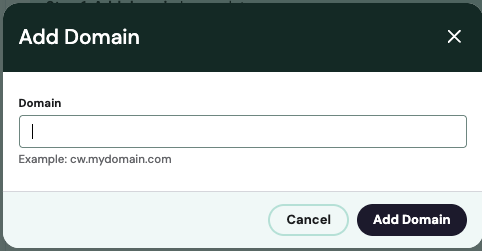
If the domain is already in use, an error will appear, and you will need to try a different domain. Once successfully added, Step 1 will display as complete, and the View and Verify DNS Records button in Step 2 will become active.
Step 3: Install DNS Records
Click View and Verify DNS Records. The Verify DNS Records pop-up will display the required DNS TXT and CNAME records for your domain.
For each record:
Copy the Host (Name) and Value (Points to) values using the copy icon.
Add the records in your DNS provider's settings.
Once all records have been added, click Verify & Install.
If verification fails, an error will appear. Check your DNS configuration and try again.
If all records verify successfully, you will be returned to the White Labeling section and a "DNS Configuration Complete" toast will appear.
Troubleshooting: If you have set DNS records but they remain unverified, check whether a CNAME exists on _domainkey.(yourdomain). A CNAME on a subdomain delegates all DNS records for that subdomain to a different DNS server — make sure you have assigned those records on the correct DNS server.
Step 4: Create Your Email Theme
After DNS is configured, the "Create Theme" button in the Step 3: Create Email Theme tile will become active. Click "Create Theme to design your email theme. See the
📄 Setting Up White Label Emails in Cartwheel knowledge base article for full instructions.
Managing Your Domain
Once DNS is configured, a ••• menu will appear in the top-right of the DNS tile with the following options:
View DNS Records — Opens the Verify DNS Records modal.
Remove Domain — Removes the domain and all DNS configuration. Emails will revert to being sent from a Cartwheel email address until a new domain is set up and verified.